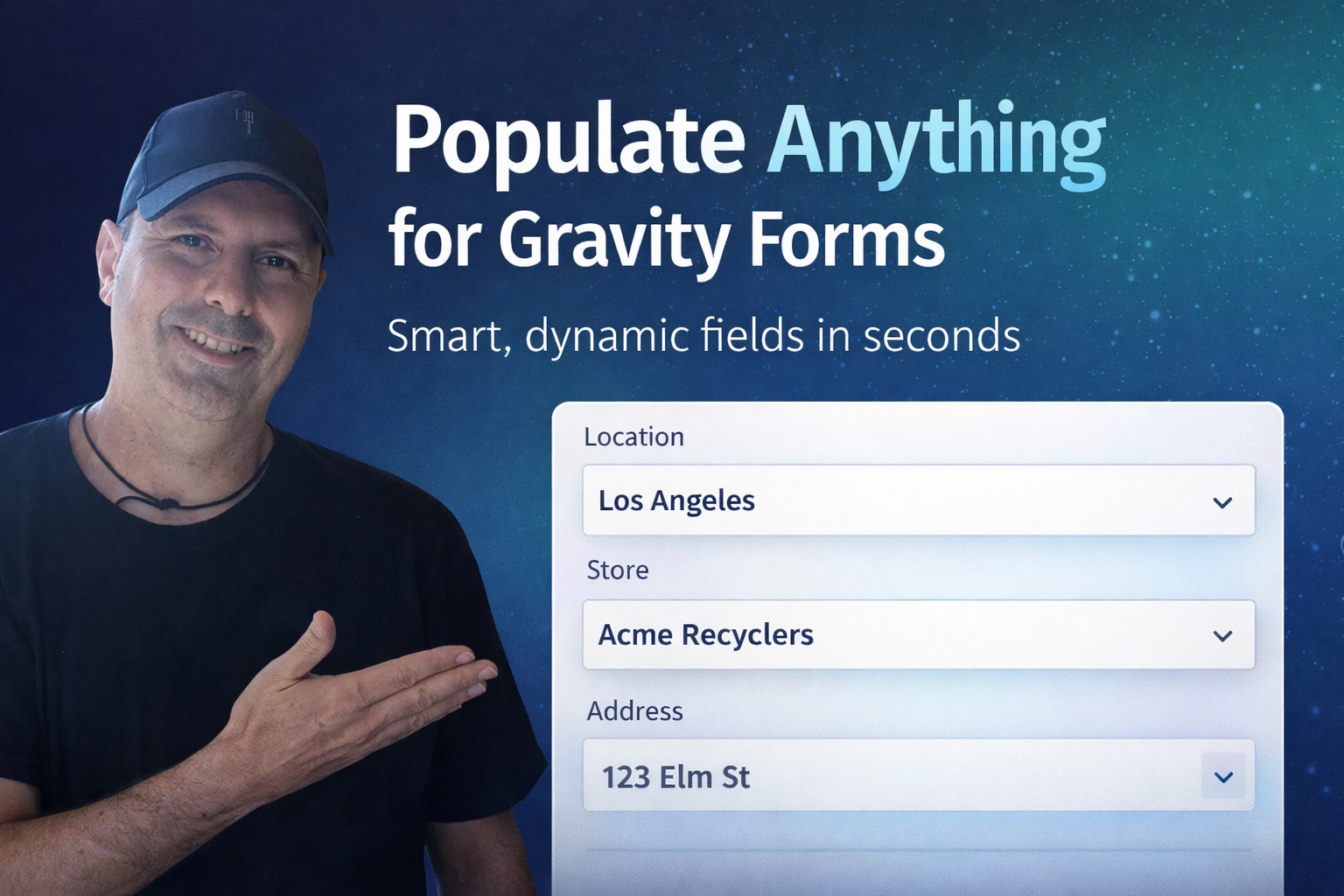
Gravity Forms is already one of the most flexible form builders in WordPress, but out of the box it still expects you to build forms like forms: a fixed set of fields, fixed sets of choices, and a “submit then process” workflow. That’s fine for contact forms, simple quote requests, and basic surveys.
The moment you start building anything app-like—directories, booking flows, membership onboarding, internal tooling, portals, calculators with real inventory, or forms that need to react to what a user chooses—you run into the same limitation: static choices don’t match dynamic reality.
That’s exactly the gap that Gravity Forms Populate Anything (GP Populate Anything) fills. It turns your forms into living interfaces that can:
- Pull choices and values from many different data sources (posts, users, terms, entries, database tables, and more)
- Filter those choices based on what the user is selecting right now
- Chain fields together (classic “chained selects,” but not limited to selects)
- Display dynamic, auto-updating content inside labels, descriptions, HTML blocks, and more via Live Merge Tags
- Reduce data entry errors by letting users select from known records instead of typing freeform
In this guide, you’ll learn what Populate Anything does, how it works conceptually, how to configure it in the Form Editor, and how to build real-world workflows—from chained selects to “lookup” fields to simple internal CRMs—without turning your site into a brittle pile of custom PHP.
What Populate Anything Actually Does
Populate Anything adds a dynamic layer to Gravity Forms fields. Instead of manually defining choices (like a dropdown list of locations) or manually filling values (like a hidden field with an ID), you configure a field to populate dynamically.
There are two big modes:
- Populate choices dynamically
For choice-based fields (dropdowns, radio buttons, checkboxes, multi-selects, and other fields that offer selectable options), Populate Anything can fetch a list of objects (like users or posts) and convert them into choices automatically. - Populate values dynamically
For many fields—text fields, hidden fields, number fields, and even choice-based fields—Populate Anything can populate the value based on a query. This is where it becomes a “lookup engine” that can fill fields with data from posts, users, entries, or tables.
On top of that, Populate Anything supports dynamic filtering, meaning the list of “available objects” can change based on the values currently in other fields. Users don’t need to submit the form to see the updated results. As they interact, Populate Anything refreshes dependent fields and Live Merge Tags via AJAX.
If you’ve ever thought “I wish this form could behave more like a small app,” Populate Anything is the feature that makes that possible inside Gravity Forms.
Why Dynamic Population Matters (Beyond Convenience)
Dynamic population isn’t just about saving time in the editor. It changes what you can build:
- Accuracy: Users choose from validated records instead of typing names, SKUs, IDs, or email addresses.
- Speed: A single “directory” form can stay current as your data changes—no manual updates.
- Personalization: Logged-in users can see relevant choices filtered to them (their orders, their projects, their departments).
- Complex workflows: Multi-step selection processes become intuitive (choose a category → choose a product → choose a variation → show price).
- Maintainability: Your choices live where they belong (in WordPress content, user profiles, entries, or a database), not duplicated in form settings.
In short: Populate Anything helps you build once and let the data drive the form.
The Core Building Blocks: Object Types, Properties, Templates, and Filters
To use Populate Anything confidently, it helps to understand its mental model. The plugin consistently revolves around four ideas.
1) Object Type: What You’re Pulling From
When you enable dynamic population, you choose an Object Type. Think of this as the category of data you’re querying. Common examples include:
- Posts (including custom post types)
- Users
- Taxonomy Terms
- Gravity Forms Entries
- Database (tables in your WordPress database, and potentially other databases with additional configuration)
- And more advanced approaches that effectively let you pull from “pretty much anything,” including REST APIs or external systems, depending on how your site is wired
Each object type has its own set of available properties (fields you can use for labels, values, and filtering).
2) Properties: The Fields You Can Use
Once you choose an object type, Populate Anything exposes properties relevant to that data source.
Examples:
- For posts: title, ID, slug, date, content, author, custom fields/meta
- For users: user ID, display name, email, roles, and user meta
- For terms: term ID, name, slug, taxonomy
- For entries: entry ID, field values, and entry meta
Properties matter because you’ll use them in two places:
- To build the choice labels and stored values
- To build filters that narrow which objects are returned
3) Templates: How Labels and Values Are Constructed
Populate Anything lets you control what the user sees and what gets saved.
- Choice label template: what appears in the dropdown/radio/checkbox label
- Choice value template: what is actually stored (often an ID or a unique key)
In many cases you can use built-in template presets, but the real power comes from Custom Value Templates, where you can combine properties and static text. This is how you create labels like:
“Acme Co. — John Smith ([email protected])”
…while still saving a clean value like a user ID or entry ID behind the scenes.
4) Filters (and Filter Groups): How You Narrow Results
Filters determine which objects populate into the field. Populate Anything supports grouping logic in a practical way:
- Multiple filters inside a single group behave like AND conditions (all must match).
- Multiple groups behave like OR conditions (any group can match).
This makes it possible to build sophisticated logic without writing code. For example:
- Group 1: (Department = Sales AND Status = Active)
- Group 2: (Department = Support AND Region = EU)
Anything matching either group populates into the field.
How to Enable Populate Anything on a Field
Configuration happens in the Gravity Forms Form Editor.
At the field level, you enable one of the dynamic options:
- Populate choices dynamically
- Populate value(s) dynamically
From there, the settings guide you through:
- Choosing the object type
- Selecting the property source for templates
- Adding filters (including filter groups)
- Setting ordering, limits, and other options depending on the object type and field
A useful way to think about this: you’re defining a query and mapping the results into a form field.
A Simple “Populate Choices” Example (User Role Selector)
A classic first configuration is populating a field with users filtered by role. Imagine you want a radio button list of administrators (or any role).
The setup conceptually looks like:
- Object Type: Users
- Filter: role equals Administrator
- Choice label: display name
- Choice value: user ID or email (depending on what your workflow needs)
On the front end, the field renders a list of admins—and if your user roster changes, the list stays current automatically.
A Simple “Populate Value” Example (Most Recent Post Title)
Value population is similar, but instead of returning a list of objects as choices, you’re usually returning a single best match (or a specific value derived from the match).
A simple use case:
- Object Type: Posts
- Ordering: newest first
- Limit: 1
- Value template: post title
The result: a text field auto-fills with the title of the most recently published post (useful for demos, but the same mechanics power real “lookup” patterns).
Populating Choices vs. Populating Values: When to Use Which
It’s tempting to default to “populate choices” because it’s visual and familiar. But value population is often the secret weapon for building sophisticated forms.
Use Populate Choices Dynamically when:
- You want the user to choose from a dataset (users, posts, products, categories, offices, etc.)
- You want the choices to be filtered by other fields (“show only items in the selected category”)
- You want to prevent typos and mismatches
Use Populate Values Dynamically when:
- You want to auto-fill fields based on existing records
- You want to store hidden IDs, prices, internal codes, routing targets, or meta values
- You’re building multi-field lookups (select one thing → populate several other fields with related data)
- You want to show “read-only” information that updates as the user changes inputs
Often the best builds use both together:
- A choice field selects the record (post/user/entry)
- Several value fields populate details from that selected record
Creating Chained Selects (and Better-Than-Select Chains)
Chained selects are the classic example of dynamic filtering:
- Select Country → Select State/Region → Select City
- Select Category → Select Product → Select Variation
- Select Manufacturer → Select Model → Select Trim
Populate Anything supports “chain selects, radio buttons, and more” because the dependency doesn’t have to be a dropdown. You can chain:
- Dropdown to radio buttons
- Checkboxes to checkboxes
- Dropdown to text/hidden field population
- Multi-select to filtered choice lists
How a Chain Works Conceptually
A chain is simply: Field B filters its results based on Field A’s current value.
So the second field’s configuration includes a filter like:
- Property: taxonomy / meta / relationship field
- Operator: equals
- Value: the current value from Field A
As Field A changes, Populate Anything refreshes Field B’s choices automatically.
Practical Tips for Smooth Chains
- Keep the stored values consistent (IDs are better than labels for filtering).
- If you need “friendly” labels, put them in the label template, not the value template.
- When dealing with large datasets, consider UI/UX improvements (searchable selects, delayed loading, or pagination approaches depending on your setup).
- If you expect empty results at certain stages, provide clear placeholder text so users understand what to do next.
Live Merge Tags: Dynamic Text That Updates While the User Types
Populate Anything isn’t limited to choice lists and field values. One of its most powerful features is Live Merge Tags, which allow you to display dynamic data anywhere inside your form, and have it update automatically as dependent fields change.
That includes:
- Field labels
- Field descriptions
- Choice labels
- Choice values
- HTML fields (for inline content, summaries, instructions, confirmations, etc.)
What Makes Live Merge Tags Different?
Standard merge tags in Gravity Forms usually resolve at submission time (or at least at render time). Live Merge Tags, in contrast, can update while the form is being filled out—because Populate Anything can refresh them via AJAX when dependent fields change.
This unlocks UX patterns like:
- A running “summary” section that updates as users pick options
- Inline validation messaging (“We found your membership record for…”) without writing JavaScript
- Dynamic instructions that change based on location, selection, or user role
- Showing the result of a lookup (like an outstanding balance) in an HTML field
If your goal is to make a form feel interactive, Live Merge Tags do a lot of heavy lifting.
Filtering Like a Pro: Understanding Filter Groups (AND vs OR)
Filtering is where Populate Anything shifts from “convenient” to “architectural.”
A quick rule of thumb:
- Multiple conditions inside one filter group = AND
- Multiple filter groups = OR
So you can model logic like:
Match objects where:
- (Type = “Event” AND Status = “Open”)
OR - (Type = “Course” AND Seats Available > 0)
In the editor, this usually looks like:
- Add a filter condition with plus/minus icons (to add/remove)
- Add additional groups to create OR logic
This grouping structure is especially helpful when your form needs to serve multiple audiences or pathways without duplicating forms.
Custom Value Templates: Turning Raw Data into Useful Labels
Templates are often underrated. Most people set the label to “post title” and move on—until they have 50 posts with similar titles, or users with duplicate display names.
Custom templates let you build clarity into the UI.
Common Template Patterns That Work Well
- Label = “Name (Email)”
Perfect for selecting users. - Label = “Product — SKU”
Ideal for internal inventory forms. - Label = “Client — Project — Status”
Great for CRMs and project intake. - Value = ID, Label = Human-readable summary
The safest pattern for filtering, saving, and looking up related values later.
Custom templates also help when you need to combine post meta or user meta with core properties. Instead of forcing admins to rename content for form usability, you let the form present the data in the best context.
Populating from the WordPress Database (and Why It’s a Big Deal)
In addition to specialized object types (posts/users/terms/entries), Populate Anything can populate directly from the database—meaning it can tap into WordPress tables and, by extension, a lot of plugin data that lives in structured tables.
When you select the Database object type, the available properties depend on the table you choose. Once selected, the properties are typically the columns of that table.
A few important implications:
- You can pull from structured data even if it’s not represented as posts or taxonomies.
- You can build admin-like selectors for complex systems (commerce, bookings, memberships) if their data is stored in tables.
- You can keep your “source of truth” in one place and let forms read from it.
Practical Constraints (And a Common Workaround)
Populate Anything supports populating from a single database table at a time. If your data is split across multiple tables, a common approach is to create a MySQL view that joins the relevant tables into one “virtual table,” then populate from that view. That’s often cleaner than trying to recreate joins inside a form configuration.
Security Notes You Should Respect
Database access is powerful and should be treated carefully. On many setups, database-based population is restricted to administrators in the backend configuration context for good reason. Treat it like a capability that should be used intentionally and audited, especially on sites with multiple admins or client access.
REST APIs and External Data: “Pretty Much Anything” in Practice
The Populate Anything tagline isn’t just marketing. The plugin is designed around the idea of “objects and properties,” which makes it extendable beyond WordPress-native data.
In real-world builds, teams often want to populate choices from:
- External CRMs
- Internal inventory services
- Third-party scheduling systems
- Spreadsheets (like Google Sheets) synced through an integration
- Custom application endpoints exposed via REST
Depending on your stack, this might be accomplished via:
- A connector plugin that syncs external data into WordPress (posts, custom tables, or entries)
- A REST endpoint that Populate Anything can query (either directly or via a bridging layer)
- A combination of cached sync + dynamic filtering for performance
The key principle remains the same: get the data into a form-queryable structure, then map it into fields with templates and filters.
Performance and Scale: Working with Large Datasets
Dynamic population can quickly introduce performance challenges when your dataset is large:
- Thousands of users
- Tens of thousands of posts
- Large entries tables
- Wide database tables with complex filters
Populate Anything has evolved specifically to handle real production pressure. Still, smart configuration matters.
Best Practices for Keeping Forms Fast
- Filter early
Don’t populate “all posts” if you only need one post type with a specific meta flag. - Store IDs, not labels
Filtering against IDs is more reliable and often more efficient than filtering against long strings. - Use ordering and limits intentionally
If you only need the “top 20,” don’t return 2,000. - Avoid unnecessary dependency chains
Every dependency can trigger refresh logic. Keep chains meaningful. - Test like a user
Try your form on slower devices, not just your admin machine.
A Note on Meta Value Limits
When accessing meta values (especially for posts), some systems cap the number of records scanned to keep admin UIs responsive. If you’re missing meta values in filter dropdowns, it may be due to a record limit rather than “missing data.” In those cases, adjusting the limit (where supported) can solve the problem—but it’s also a sign you should tighten filters or rethink how you’re modeling the data.
Real-World Build Patterns You Can Copy
Let’s move from features to practical architectures. Below are common “recipes” that Populate Anything makes straightforward.
Pattern 1: The “Select a Record → Populate Details” Lookup Form
Use case: support requests, order inquiries, account updates.
Flow:
- User selects an identifier (order number, email, membership ID, project)
- Form populates related details into read-only fields (name, plan, last invoice date, status)
- User confirms or adds extra info, submits
How it’s built:
- Field A: user inputs email or selects account from populated dropdown (depending on workflow)
- Field B/C/D: populated values filtered by Field A
- Live Merge Tags: show “We found your record for…” summary
Benefits:
- Fewer incorrect submissions
- Better internal routing
- Less manual lookup work for your team
Pattern 2: Chained Select Product Configurator
Use case: quotes, bookings, build-your-own packages.
Flow:
- Choose category → choose product → choose option → show price → calculate total
How it’s built:
- Category dropdown: populated from taxonomy terms
- Product dropdown: populated from posts filtered by selected category
- Options checkboxes: populated from post meta or a related table filtered by selected product
- Price field: populated dynamically and used in calculations
- Live Merge Tags: show “Your selection” summary and running totals
Benefits:
- Feels like a product selector, not a form
- Keeps inventory/options centralized
- Reduces the need for custom front-end apps
Pattern 3: Lightweight Directory Search
Use case: staff directory, vendor directory, property listings, resource libraries.
Flow:
- User selects filters (department, location, specialty)
- Results populate as choices, or displayed via Live Merge Tags in HTML blocks
How it’s built:
- Filters: choice fields populated from terms or meta
- Results field: populated from posts/users filtered by selected criteria
- Optional: a “details” section populates once a result is chosen
Benefits:
- Up-to-date directory with no manual form maintenance
- Search and filter logic lives inside Gravity Forms
Pattern 4: Gravity Forms as a Simple Database (Then Populate From It)
One of the most practical uses of Populate Anything is using Gravity Forms entries as the database for another form.
Example:
- Form 1: “Submit a new resource/vendor/product”
- Form 2: “Select from submitted resources/vendors/products”
Because Populate Anything can populate from entries, you can build systems where user submissions become selectable data for other users—without creating custom post types or building a separate admin interface.
This is especially powerful for:
- Internal request systems
- Lead routing
- Event submissions
- Lightweight CRMs
Pattern 5: Dynamic User-Specific Forms
Use case: portals, account pages, member tools.
Flow:
- Logged-in user visits a form
- Fields populate with their profile data, their entries, their purchases, or their assigned projects
How it’s built:
- Populate from Users object type filtered to “current user”
- Populate from Entries object type filtered by created-by user ID
- Use Live Merge Tags to personalize headings and instructions
Benefits:
- Personalized experience with minimal code
- Less chance of users selecting the wrong record
Common Gotchas (And How to Avoid Them)
Even great tools have sharp edges. Here are issues that come up repeatedly when teams adopt dynamic population for the first time.
1) Using labels as stored values
If you store “Acme Co.” as the value and later you rename it to “Acme Corporation,” your filters and lookups can break. IDs and unique keys are safer.
2) Forgetting that dependency refreshes replace HTML
Populate Anything refreshes fields via AJAX. If you attach custom JavaScript listeners to field elements, you may need to re-bind those listeners after refresh because the DOM nodes can be replaced.
3) Over-fetching data
Populating 5,000 choices into a dropdown is rarely a good UX. If your dataset is large, refine filters, add search, or rethink the flow (e.g., filter first, then show results).
4) Not planning for “no matches”
If a user selects filters that return zero results, the form should communicate what happened. Placeholders, helper text, or a Live Merge Tag message can prevent confusion.
5) Not considering multi-page form behavior
In multi-page forms, field refresh behavior can interact with pagination and validation. Test thoroughly, especially when dependent fields appear on later pages.
A Practical Setup Checklist Before You Build
When you’re starting a Populate Anything build, run through this checklist. It will save hours.
- Define the “source of truth”
Where does the data live—posts, users, entries, or a table? - Decide what should be displayed vs stored
Make labels human-friendly and values machine-friendly. - Design dependencies intentionally
Map which fields depend on which inputs. - Filter as early as possible
Avoid exposing huge datasets without narrowing. - Plan the user journey
Make sure the form remains understandable at every step. - Add a Live Merge Tag summary
Users love seeing confirmation that the form “understands” them. - Test with real data volume
A form that’s fast with 10 records may be slow with 10,000.
Why Populate Anything Is More Than a “Dropdown Populator”
If you only use Populate Anything to fill a dropdown with posts, you’ll still get value. But the reason it’s considered a “Swiss Army” tool in the Gravity Forms ecosystem is that it combines several capabilities into one coherent system:
- Dynamic queries from many data sources
- Template-driven mapping into labels and values
- Conditional filtering that updates while the form is being filled out
- Live Merge Tags that turn forms into interactive experiences
- Support for chaining and building multi-step selection flows
That combination is what lets you build app-like workflows inside WordPress—without forcing everything into custom post types or writing a custom front end.
Final Thoughts: Building Better Forms by Letting Data Drive
Modern users expect forms to be smart. They expect relevant choices, fewer steps, less typing, and instant feedback. At the same time, site owners want maintainability: update data once and have every interface reflect it automatically.
Gravity Forms Populate Anything is a practical bridge between those expectations and the realities of WordPress sites. It doesn’t replace Gravity Forms—it expands it, making forms behave like dynamic interfaces powered by your existing data.
If you’re building anything beyond basic lead capture, Populate Anything isn’t just a convenience feature. It’s an architectural tool. It helps you model your data, control the flow of choices, reduce user error, and create interactive experiences that feel modern—while staying inside the Gravity Forms editor you already know.